Almost every application ends up doing the same handful of small file jobs. Someone uploads a photo and you need a thumbnail that isn't stretched. A customer wants the first page of a PDF as a preview. An order needs a QR code on the confirmation, and a warehouse label needs a barcode. None of it is hard on its own. Together it turns into three libraries, a queue nobody wants to own and a folder of files named final-v2-small.webp.
Imazeo is a project-based API for exactly those jobs: image processing, PDF tools, and QR code and barcode generation. This post covers what it does, what the first request looks like, and where it fits. It also covers where it doesn't, because a narrow scope is part of the design.
What Imazeo does
There are three areas, and each one maps to a task you have probably already written a script for.
Area | What you can do | What comes back |
|---|---|---|
Resize, crop, adjust color, apply blur or grayscale, convert format | The processed image, for example a 600 × 600 WebP | |
Render a page as an image, merge files, extract selected pages | A page image, or the merged or extracted pages | |
Generate a QR code or one of six barcode types, with explicit content, size and color | PNG or SVG |
The barcode example on the Imazeo home page is Code 128, and the QR example encodes an ordinary catalog URL. Both come back as SVG, which is handy for labels and print.
One original, as many derivatives as you need
The idea behind the rest of the product is stated on the About page in a few words: keep the original, specify the derivative. You upload a source image once. After that, you describe each output you want, and the original stays as it was.
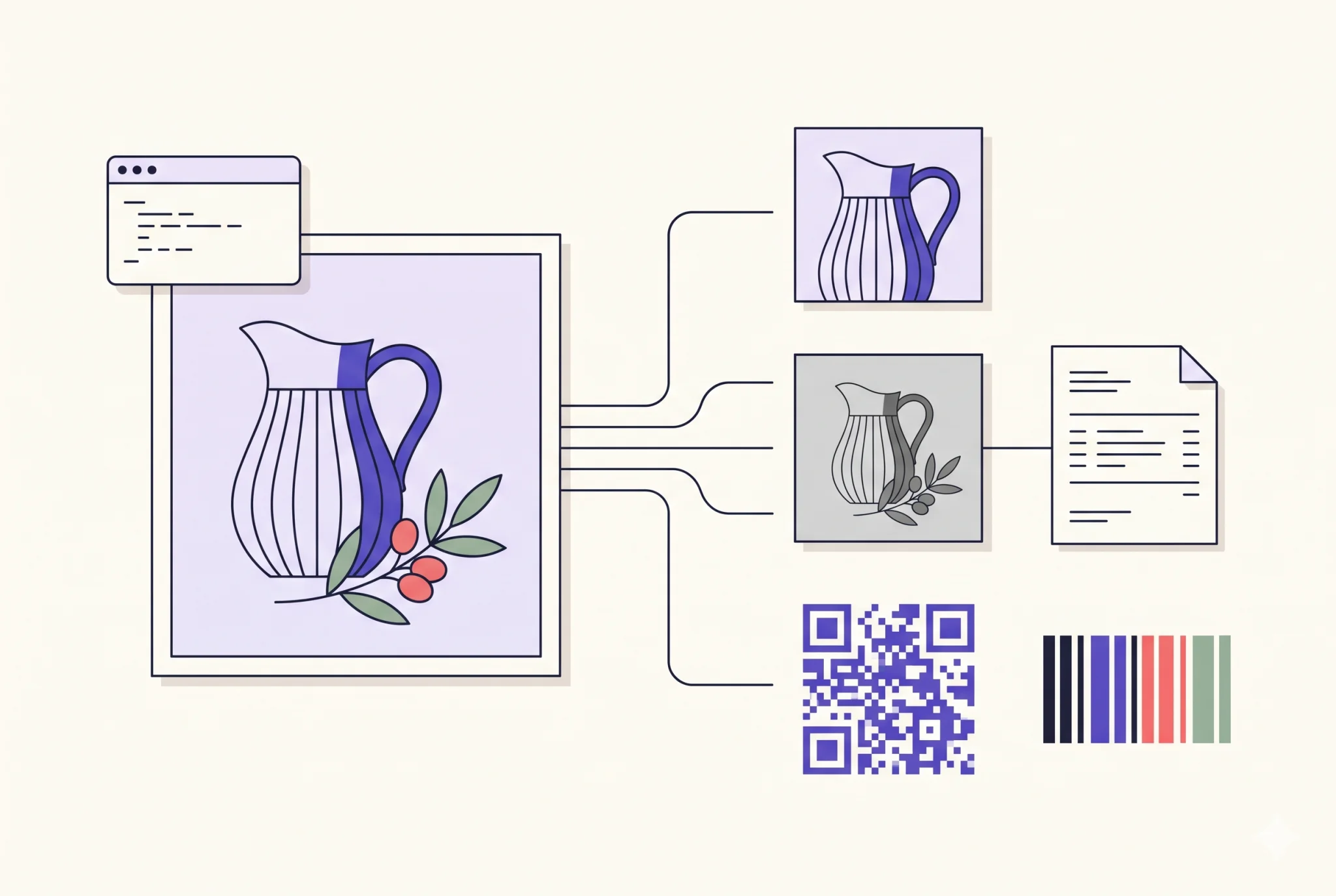
A product photo is the obvious case. One upload can become a square crop for a catalog tile, a grayscale version for a sold-out state, a blurred placeholder, and a color-adjusted variant. Each one is defined by a few explicit values, such as blur: 4, grayscale: true, or hue: 30 with saturation: 1.5.
Two settings do most of the thinking. The fit mode says how the image is composed inside the box you asked for. The storage mode says what happens to the result afterwards. Neither is a guess made on your behalf, and that makes a request easy to read back months later.
Your first request, in two calls
The quickstart uploads one original and asks for a square WebP. Once you have created a project in the Customer portal and issued a key for it, the whole thing runs from a terminal. The values below are placeholders: use the API origin and project UUID from your own account, and enter the key at the hidden prompt rather than saving it in a file.
export IMAZEO_API_ORIGIN='https://api.imazeo.com'
export IMAZEO_PROJECT_ID='REPLACE_WITH_PROJECT_UUID'
read -r -s -p 'Project API key: ' IMAZEO_API_KEY; printf '\n'
export IMAZEO_API_KEY
First, upload the original. The X-Upload-Length header is the file's exact byte count, not the multipart length.
curl --fail-with-body --silent --show-error \
  --request POST "$IMAZEO_API_ORIGIN/v1/projects/$IMAZEO_PROJECT_ID/images" \
  --header "X-API-Key: $IMAZEO_API_KEY" \
  --header "X-Upload-Length: $(wc -c < field-notebook.png | tr -d '[:space:]')" \
  --form "file=@field-notebook.png" \
  --output upload.json
A successful upload returns HTTP 201, and the image ID is in the response at data._id. Copy it into the next request.
curl --fail-with-body --silent --show-error \
  --request POST "$IMAZEO_API_ORIGIN/v1/projects/$IMAZEO_PROJECT_ID/transforms" \
  --header "X-API-Key: $IMAZEO_API_KEY" \
  --header 'Content-Type: application/json' \
  --data '{"imageId":"REPLACE_WITH_IMAGE_ID","mode":"CACHE","transform":{"width":600,"height":600,"fit":"cover","format":"webp","quality":80}}' \
  --dump-header response-headers.txt \
  --output output.webp
The request body is the readable part. It names the image, the storage mode, and the transform:
widthandheightset the size of the output, here 600 × 600.fitdecides how the original is composed in that box.coveris the usual choice for a square tile.formatandqualitychoose the encoding, here WebP at 80.
A successful call returns HTTP 200 with image/webp bytes. The saved headers include X-Transformation-ID, X-Cache (a HIT or a MISS), ETag and X-Request-ID. One habit worth keeping: check curl's exit status before you open output.webp. With --fail-with-body, a failed request writes the JSON error into that file, and an image viewer will tell you the file is corrupt rather than why.
Projects, keys and limits
Every request happens inside a project. Keys are project-scoped, so a key keeps media access within its own project. You create and revoke them in the Customer portal. Send either an X-API-Key header or a customer bearer token, never both, and keep the key on your server rather than in browser code.
The same portal shows credits, storage and bandwidth against your assigned limits. Two details from the documentation are worth knowing before you test:
Calls consume usage, and they keep both the uploaded original and the cached derivative.
Deleting media gives back the stored bytes, but not past processing or transfer usage.
A timeout also doesn't prove the server cancelled the request. Look at the project's media and usage before you retry an upload.
Who it is for, and who it isn't
Imazeo suits server-side applications that need predictable outputs: catalog thumbnails, document previews, ticket and label codes, back-office tools. Because each request spells out its dimensions, fit and format, it is easy to log, compare and reproduce when something looks wrong.
It isn't an image editor, and it isn't a generative model. You describe what should happen to a file you already have. If you need interactive editing or text-to-image, this is not that tool, and the scope is deliberately small.
Where to go next
Your first image transformation, the full version of the walkthrough above, including a Node.js alternative.
Authentication and API keys for the two ways to authenticate.
Transformations API for every option a transform accepts.
PDF tools for page previews, merging and extraction.
QR codes and barcodes for the content, size and color controls.
Quick answers
What is Imazeo?
A project-based API for image processing, PDF tools and QR code and barcode generation, with a Customer portal for originals, keys and usage.
Is there a free plan?
Yes. You can start on the Free plan and explore the toolkit within your account's assigned limits. The pricing page lists the plans.
Do I need an SDK?
No. The quickstart runs with plain curl or with the built-in fetch in Node.js. The SDKs and language support page covers the rest.
Can I process an image from a URL?
When remote URLs are enabled for your account, yes. Otherwise, upload the original first and reference it by ID.
Where is Imazeo operated?
Imazeo operates in India.
If you are building a media workflow and want to talk it through, the contact page is the place to start.