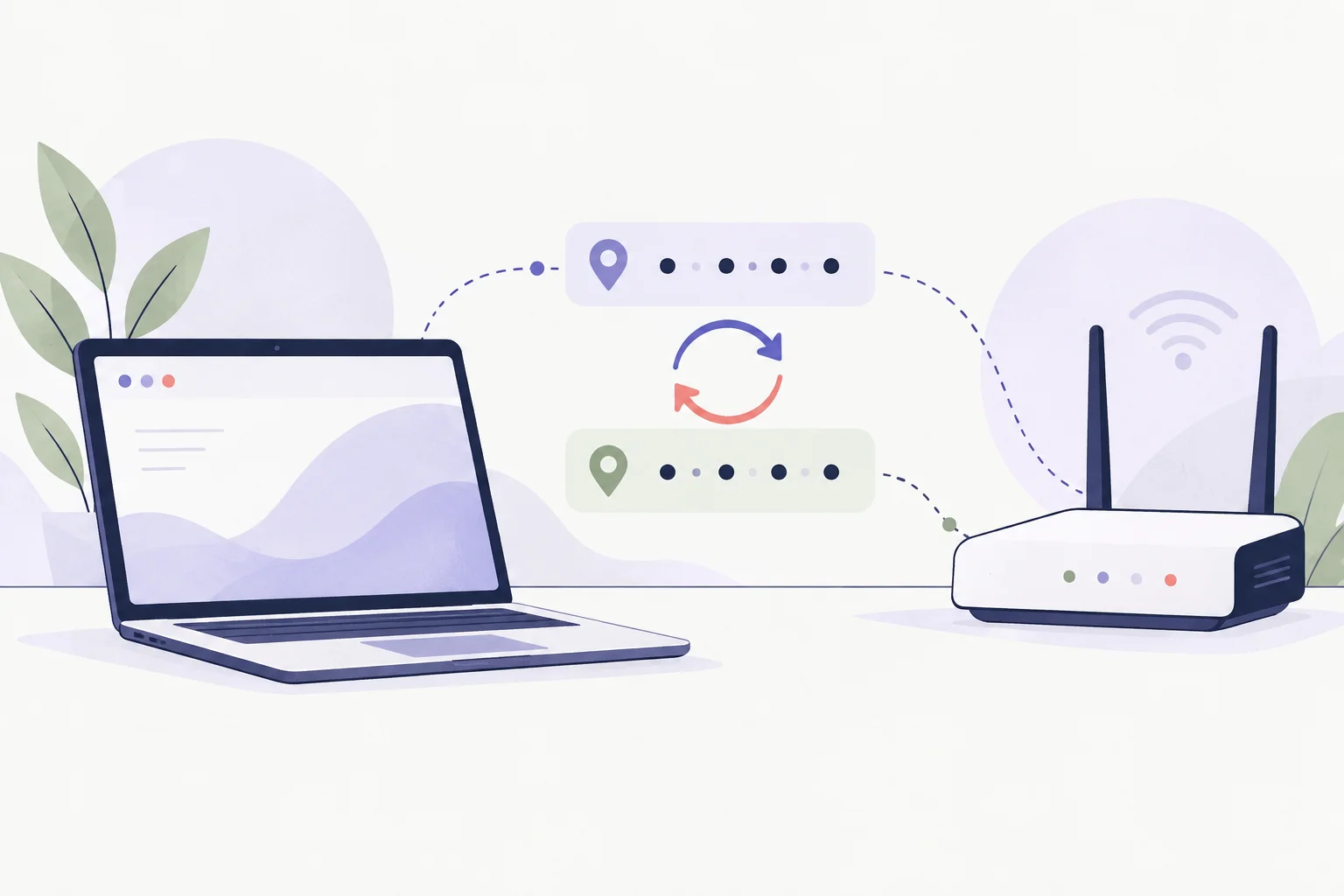
Before changing an address, identify which address you mean. Your computer's local network address and the public address a website sees are often different. Renewing a local DHCP lease does not promise a new public address.
Inspect before changing#
In Command Prompt, use:
ipconfig /allFind the active adapter and note whether DHCP is enabled. Do not copy an address, subnet mask or gateway from an unrelated example. Those values must fit the network you are actually using.
Prefer the normal configuration path#
Use Windows network settings to choose automatic addressing or enter a static configuration supplied by your network administrator. Microsoft's network settings guide describes the controls.
On a DHCP network, ipconfig /renew requests lease renewal; the server can return the same address. Releasing a lease can disconnect the machine, so do not use it casually during a remote-support session. See the ipconfig reference.
An arbitrary address can conflict with another device or leave the machine unable to reach its gateway. If the task is looking up a website rather than changing your device, use nslookup instead.