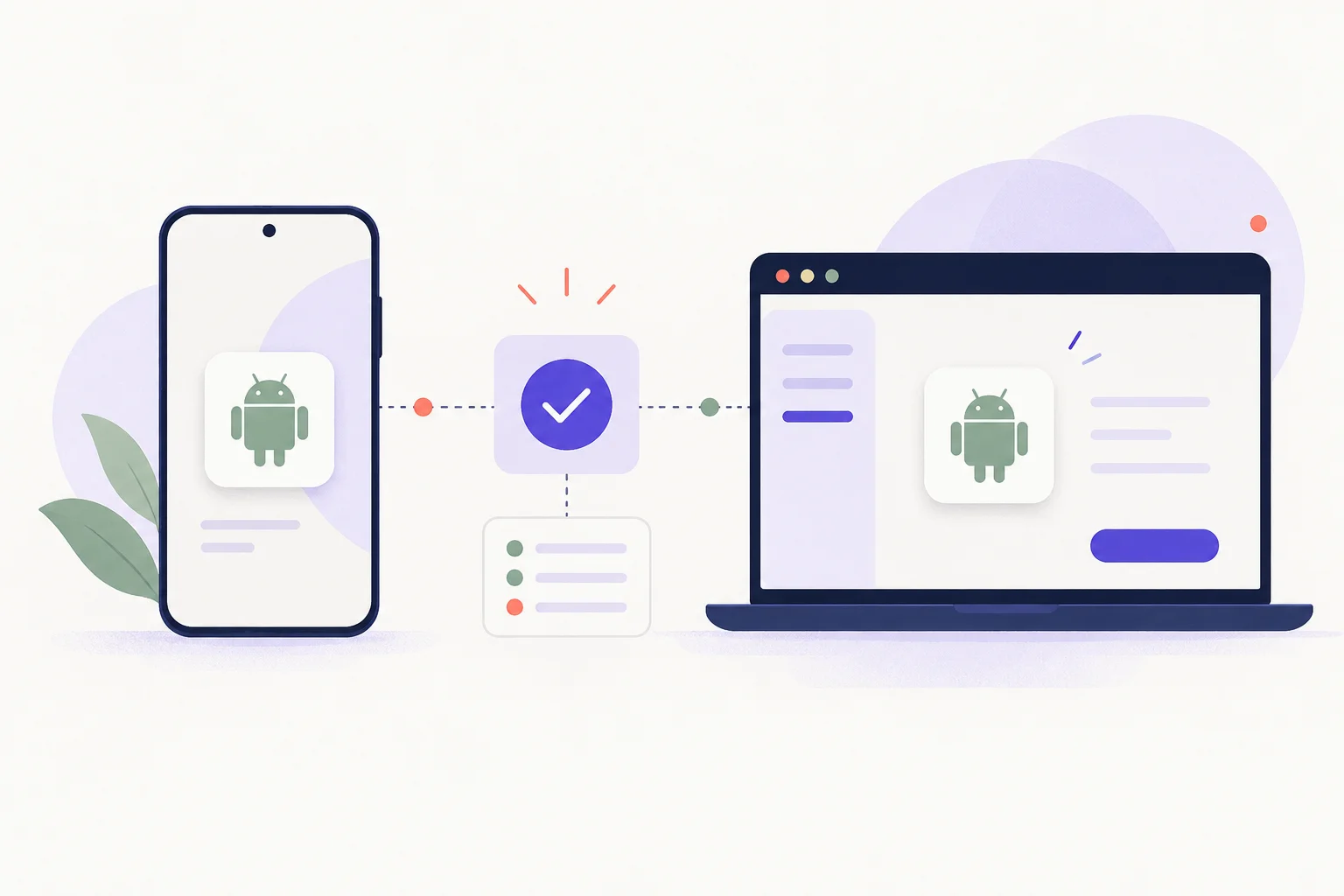
An Android app does not become a Windows application just because it appears inside a desktop window. An emulator supplies an Android environment, and the app still has to work with that environment's hardware, services and input methods.
Check the app before choosing an emulator#
Start with the developer's supported platforms. A native desktop app or web version may be simpler than emulation. Games can have anti-cheat restrictions, and apps that require particular sensors or security checks may refuse to run.
If you choose BlueStacks, use its official site and support documentation. Check the current system requirements there rather than following the old install wizard screenshots or assuming an old synchronization feature still exists.
Keep the environments separate#
Install apps through a trusted source supported by the environment. Treat the emulator as another device signed in to your accounts: review its permissions, updates and account sessions. A faster PC does not guarantee that every mobile game will run correctly.
For development, Android's official emulator documentation explains the testing environment supplied with Android Studio. That is a development tool, not a promise that every consumer app is supported. The situation for iPhone apps on Windows is different.