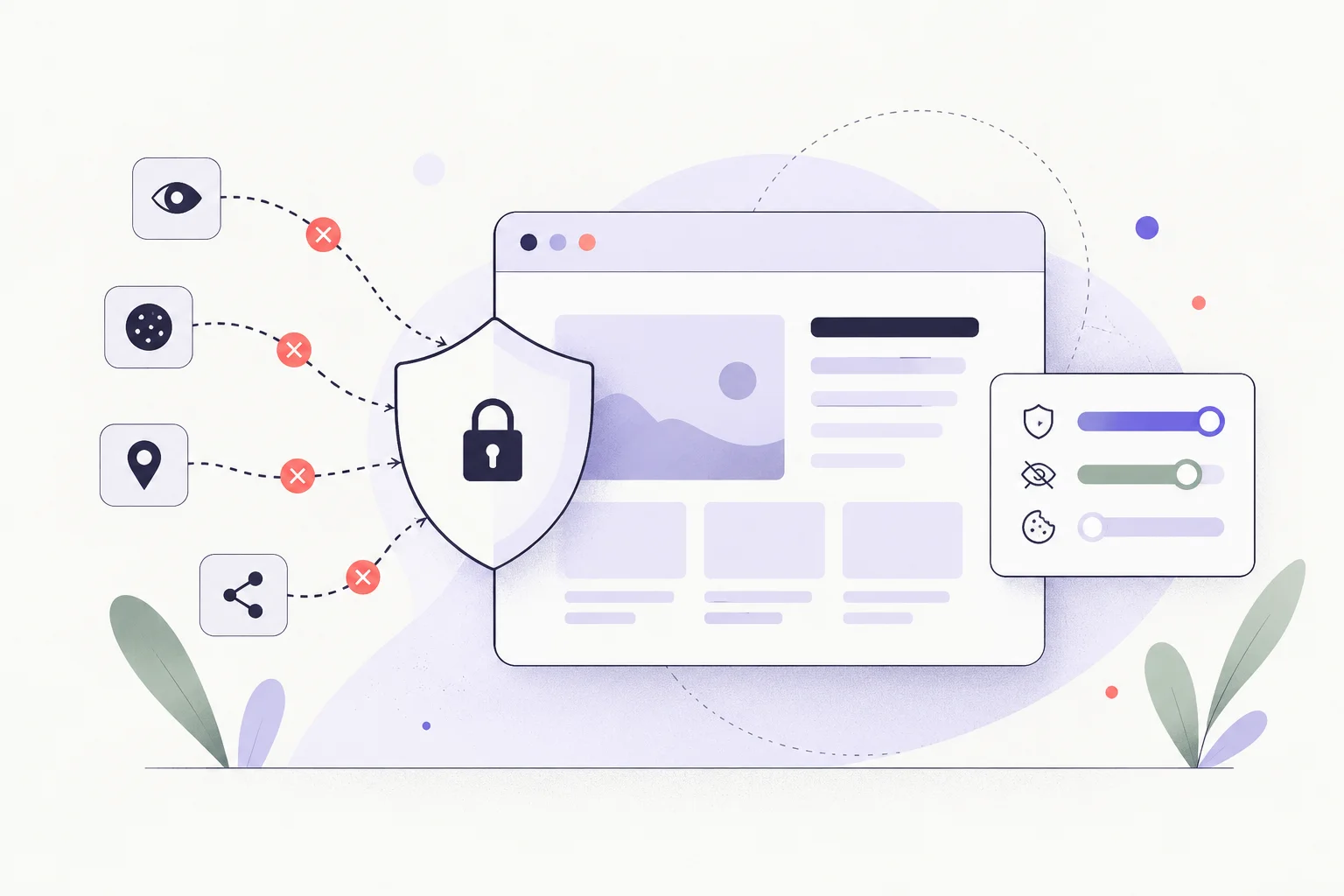
Blocking some tracking requests can reduce what third parties learn from a page visit. It does not make the browser anonymous, erase an account's history, or stop a site from seeing activity on its own service.
Start with the browser's own privacy controls#
Review cookie and tracking settings first. Then, if you use a filtering extension, check which privacy lists it supports and which ones are already enabled. EasyPrivacy is a maintained filter-list project; the Adblock Plus features documentation explains the extension's controls.
Do not use the malformed subscription URLs in the original article. Open the extension's own settings or the project's official instructions instead of pasting an unfamiliar protocol link into the address bar.
Understand what changed#
After enabling a list, test a few sites you use. A blocked request may remove an embedded player or sign-in component as well as a tracker. Keep a record of exceptions and make them per-site where possible.
Signed-in activity, fingerprinting and tracking performed through the site's own origin need different controls. That is why a claim to disable all tracking is too broad. For basic installation and list choices, see the Adblock Plus guide.