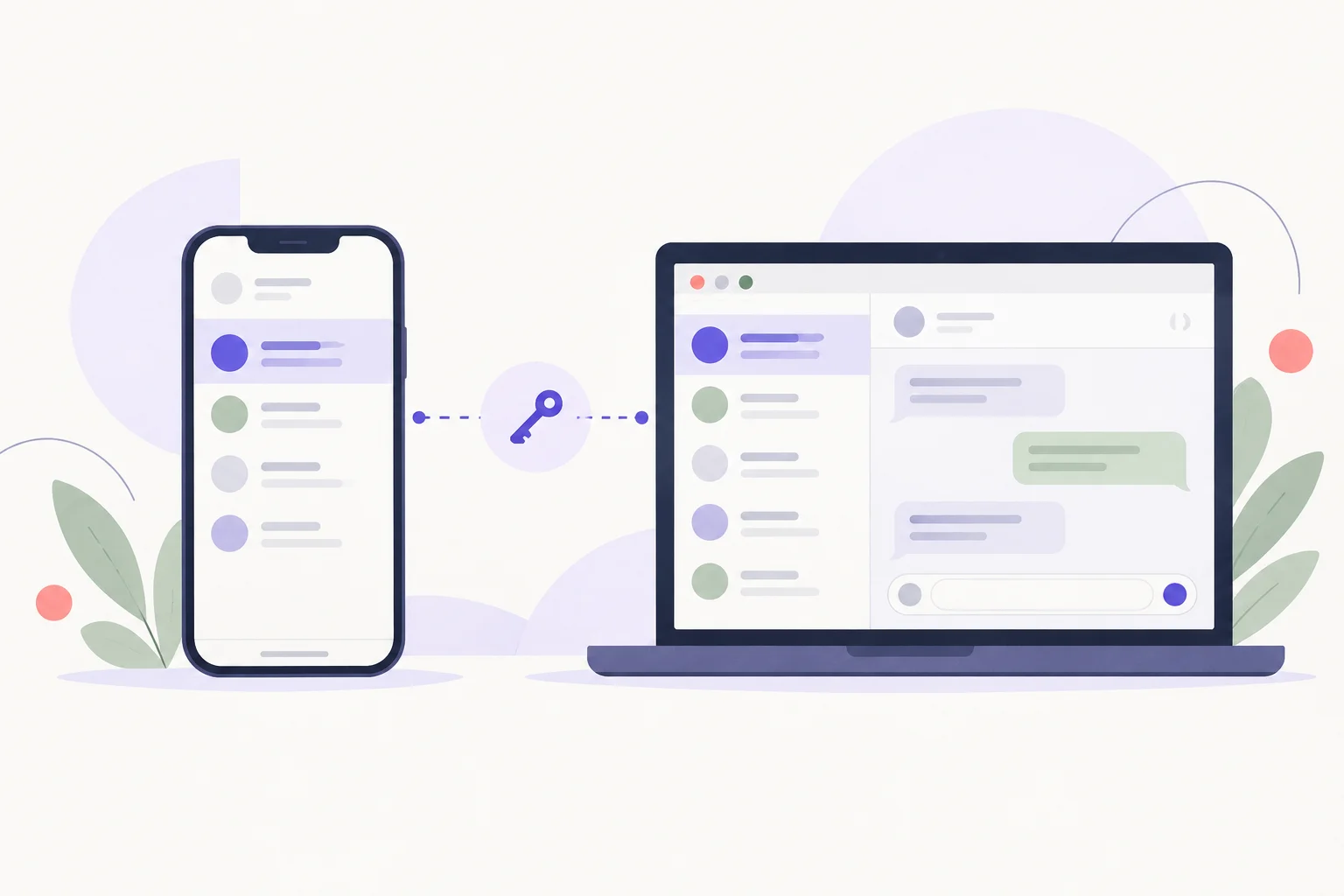
WhatsApp Web lets a supported browser act as a linked device. Start by typing web.whatsapp.com yourself, rather than scanning a sign-in code sent by someone else.
Link the browser deliberately#
Open the linked-device controls in WhatsApp on your phone and follow the current instructions to link a device. If a QR code is shown, scan the code displayed by the official web page on the computer you intend to use. Menu labels vary across phone platforms and releases; the WhatsApp Help Center documents the current steps.
Check that the browser has opened the expected account. On a shared computer, avoid leaving the session accessible to the next person.
Review linked sessions#
Use the phone's linked-device list to inspect and remove sessions you no longer recognize or use. Signing out on the browser is also useful when you finish on another person's computer.
Launch-era instructions mentioning Windows Phone or BlackBerry describe an earlier product. Use the linking instructions for the phone and app version you have now. A QR-based sign-in can still be abused if someone tricks you into authorizing their session. See the messaging privacy history for a separate discussion of account privacy claims.